![noth49_logo.png]](https://help.north49.com/hs-fs/hubfs/noth49_logo.png?height=40&name=noth49_logo.png)
Table of Contents
Introduction to PayFabric Sage Intacct
Setup a Gateway Account Profile
PayFabric for Sage Intacct Setup
PayFabric Gateway Account Profile Setup
Accounts Receivable Receive Payments
Accounts Receivable Adjustments (Credit Memo)
Introduction to PayFabric Receivables
PayFabric Receivables Sage Connector
PayFabric Receivables Workflow
Introduction to PayFabric:
PayFabric is a cloud-based payment acceptance platform and storage hub that can be integrated with any application, platform, and back office environment with ease and simplicity.
PayFabric offers real-time transaction processing for both credit card and ACH transactions while meeting the highest standards of security. PayFabric helps merchants reduce the scope of their PCI compliance by helping to remove credit card access from applications. By connecting to PayFabric, 3rd party applications are relieved of any access to sensitive credit card numbers. PayFabric can easily be integrated with applications to allow for shared management of customer’s credit card and ACH data.
Introduction to PayFabric for Sage Intacct
PayFabric for Sage Intacct is an add-on service to Sage Intacct that provides businesses the tools to process payments on a multitude of document types such as Sales Order, Sales Invoice, Advances, Adjustments, and Accounts Receivable Invoice.
By leveraging the payment processing power of PayFabric, the solution offers real time payment processing for both credit card and ACH transactions while ensuring the highest standards of security are addressed.
In addition, our solution offers document synchronization between Sage Intacct & PayFabric Receivables. By logging into PayFabric Receivables, customers can securely view & pay any outstanding invoices.
This document will cover how to configure and utilize PayFabric for Sage Intacct features and functionality.
Prerequisites
The following items should be obtained before starting with PayFabric for Sage Intacct.
PayFabric Organization Account
To use PayFabric for Sage Intacct, the organization must first be setup in PayFabric.
To set up an account for testing, go to https://sandbox.payfabric.com/Portal/Account/Register.
To set up a production account, contact the PayFabric partner or Sales@PayFabric.com.
To use PayFabric for Sage Intacct, it is assumed that the PayFabric account is set up for the organization and has an existing Payment Gateway Account Profile configured.
For more information on the setup and usage of PayFabric, refer to the PayFabric Portal Guide.
https://www.nodus.com/documentation/PayFabric-User-Guide.pdf
Preconditions to Install PayFabric for Sage Intacct:
- User performing install has system administrator permissions
- Ability to access Platform Services / Install from XML
Support
For support related inquiries or for questions not found within this document, contact PayFabric Support for further assistance.
| Contact Method | Address/Numbers |
| support@PayFabric.com | |
| Website | https://www.payfabric.com/us/support.html |
| Telephone | (909) 482-4701 |
PayFabric Setup
Create a PayFabric Account
The organization must first be set up in PayFabric. If a new account is needed, go to one of the
following pages to setup an account:
Live Production Account: Contact Sales@PayFabric.com
Testing Sandbox Account: https://sandbox.payfabric.com/Portal/Account/Register
Create a Device
The following steps can be used by the PayFabric Administrator to create a Device in PayFabric to authenticate the connection between PayFabric and Sage Intacct.
- Log into the PayFabric account
- In the organization intended for Sage Intacct, navigate to Settings > Dev Central
- Select the 'Themes' tab
- Click the 'Create New +' button and enter a name such as 'Sage Intacct'
- Click the following link to open a new web page containing the theme css: Custom.css
- Copy the text
- Paste the copied text into the 'Custom.css' section
- Click the following link to open a new web page containing the theme javascript: Custom.js
- Copy the text
- Paste the copied text into the 'Custom.js' section
- Click the 'Save' button to complete the changes to the theme.
- After saving, select the 'Device Management' tab
- Click the 'Generate' button to begin the device creation
- Populate the device name field with an easily identifiable name such as 'Sage Intacct'
- Populate the password fields with a secure password.
- Click the 'Confirm' button to complete the device creation
- In the device list, click the shirt icon to assign the 'Sage Intacct' theme to the 'Sage Intacct' device that was just created.
- After selection, click 'Confirm' to save changes.
Setup a Gateway Account Profile
In order to process transactions, a Gateway Account Profile should be set up in the PayFabric
organization. The page for setting up a Gateway Account Profile can be found in the menu under
Settings > Gateway Account Profiles.
For more information on how to set up a Gateway Account Profile and general PayFabric usage,
please refer to the PayFabric Portal Guide.
https://www.nodus.com/documentation/PayFabric-User-Guide.pdf
PayFabric for Sage Intacct Setup
The following steps depict how to configure the connection to PayFabric within Sage Intacct.
1. Navigate to the PayFabric Setup Screen within the PayFabric Components.
2. Populate the fields based on the below table
| Field | Value |
| Account Type |
Based on the PayFabric environment being used, set this value to Live or Sandbox. Note: Other is used for bespoke URL's and this would be communicated by your PayFabric Partner if needed. |
| PayFabric URL |
This field will automatically be set after the account type is selected. Note: Other is used for bespoke URL's and this would be communicated by your PayFabric Partner if needed. |
| PayFabric Device ID | Set this value to the PayFabric Device ID created for Sage Intacct during the previous Create a Device section. |
| PayFabric Password | Set this value to the password associated to the PayFabric Device ID for Sage Intacct. |
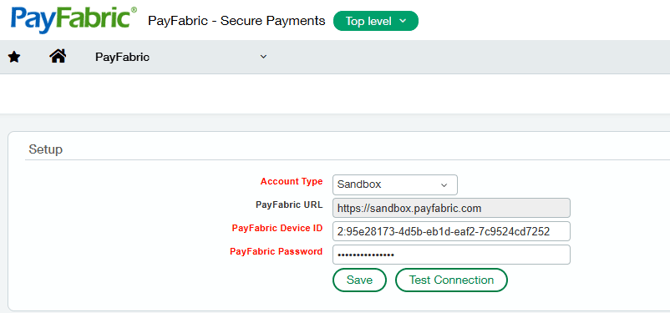 Example image of an example of a completed PayFabric Setup
3. After the settings have been configured, click the Test Connection button to verify that Intacct can communicate with PayFabric.
4. If the connection is good, then a success message will be displayed at the top of the form. Otherwise, if a failure message is displayed, please re-verify your PayFabric device ID/Password or network connection.

Image of a successful test connection
5. Save the Setup configuration.
PayFabric Gateway Account Profile Setup
The PayFabric Setup page displays the available PayFabric Gateway Account Profiles that are available within Sage Intacct.
1. Navigate to the PayFabric Setup Screen within the PayFabric Component.
2. On the bottom half of the screen, the PayFabric Gateway Profiles section will display any previously imported gateways.
 Example image that displays gateways that are available within this instance of Sage Intacct
3. Select the 'Import PayFabric Gateways' Button. This action will import all gateways created in PayFabric into Intacct. Note: If any gateways were already existing, this action will update.
4. After the Gateways are imported, click edit and populate the fields based on the below table.
| Field | Value |
| Name | The identifier for your gateway to be displayed within Sage Intacct. By default, it will be populated using the same name in PayFabric on import. Tip: use a descriptive name to easily understand what gateway you will be processing with. |
| Account Type |
Ability to select either Bank or Undeposited Funds account to record payments against. If Bank is selected, will have to select the bank account. If Undeposited Funds account selected, will have to select the GL account. |
| Default Currency |
The currency code used by the intended company/entity. This would generally be a 3 digit code, Eg. USD or CAD. |
| Bank Account |
The Bank Account that processed payments will be associated to. |
| GL Account |
The GL Account that processed payments will be associated to. |
| Advances Bank Account |
The Bank Account that processed advances will be associated to. |
| Advances GL Account |
The GL Account that processed advances will be associated to. |
| Description |
Description of the gateway setup |
| Surcharge Rate |
Read-only field which will display the surcharge rate imported from PayFabric. |
| Surcharge GL Account |
The GL Account that processed surcharge payments will be associated to. |
| Entity |
The ID of the intended entity used for processing. |
5. Save changes.
PayFabric Wallet
The PayFabric Wallet page will allow users to securely view or add payment methods that are associated to an Intacct customer.
Navigate to the PayFabric Wallet screen through the PayFabric component.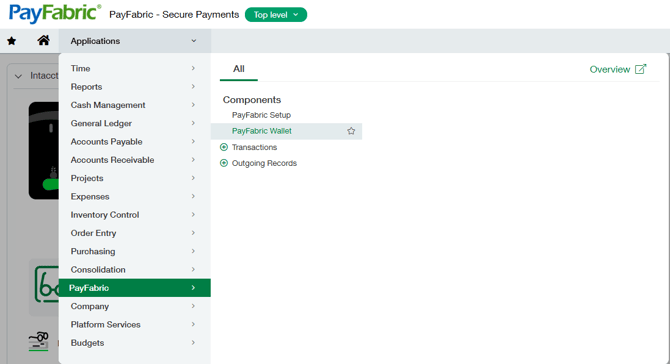
Once on the PayFabric Wallet page, select a customer. This will load any existing payment methods belonging to the customer.

The following actions can be done on the PayFabric Wallet page.
Add a new payment method
- Select a customer if not already selected
- Click 'Add Credit Card' or 'Add ACH'
- On our secure form, the user can input the credit card or ACH details
- Click Save
Set a default payment method
- Select a customer if not already selected
- In the wallet grid, look for the default column
- Click the toggle to set a payment method as the default
Only a single Credit Card and ACH can be set as the default method

Edit an existing payment method
- Select a customer that has existing payment methods if not already selected
- In the wallet grid, click the Edit button under the Actions column
- On our secure form, the user can update any information pertaining to the selected payment method. Eg. updating the billing address or expiration date.
- Click Save
View an existing payment method
- Select a customer that has existing payment methods if not already selected
- In the wallet grid, click the View button under the Actions column
- On our secure form, the user can view information pertaining to the selected payment method.
Delete an existing payment method
- Select a customer that has existing payment methods if not already selected
- In the wallet grid, select one or multiple payment methods that require deletion
- Click the Delete button
PayFabric Transactions
The PayFabric Transactions page will allow users to view all PayFabric Transactions which have been processed within Intacct and/or integrated from PayFabric Receivables. In addition, from the list, the user can capture authorizations in bulk or reverse pending and settled transactions. To access this page, navigate to Transactions found under the PayFabric component.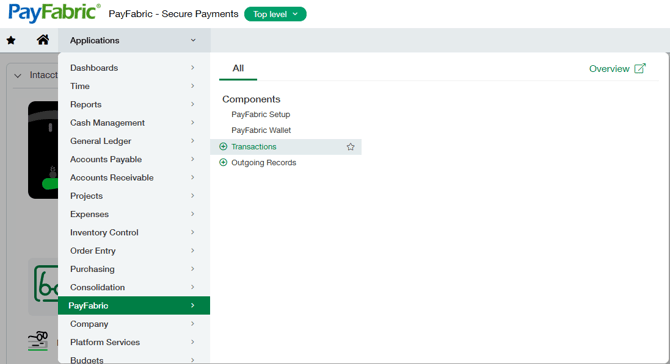
When the page has loaded, the user will be able to view all transactions which have been processed within Intacct. This view will allow the user to see the details of all transactions such as last 4 digits of the card/ACH, amount, user, or the gateway that was used to process.
View a Transaction
Clicking the view button on a row in the main transaction list will allow the user to view details for a specific transaction. These details include information regarding the transaction, the response, and the payment details. Additionally, this will allow the user to view which Intacct document is associated to the PayFabric Transaction.
Edit a Transaction
Clicking the edit button on a row in the main transaction list will allow the user to modify the relationship between an Intacct document and a PayFabric transaction. 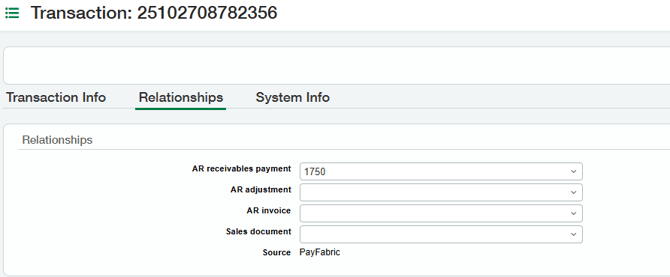
Bulk Capture Authorizations
The capture button on the transaction list will allow the user to capture selected pending authorizations all at once. When capturing transactions, the user can locate all pending authorizations by changing the view to 'All Pending Authorized Transactions'.
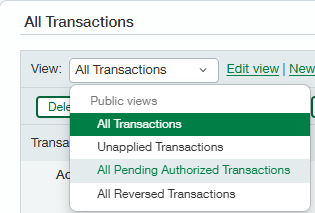
Utilizing the pending view, a user will be able to easily view and select any authorizations that are ready to be captured.
When all intended authorizations have been selected, the user can click the capture button and will be presented with a confirmation window displaying the number of authorizations that will be captured.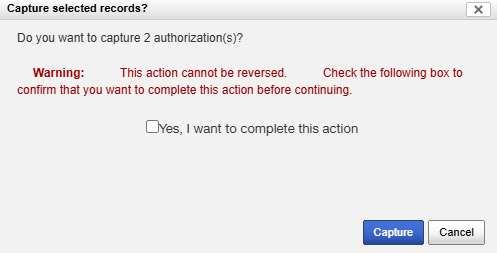
In addition, there are checks in place to prevent the user from attempting to capture invalid transactions. An error message will be displayed to the user when attempting invalid transactions. 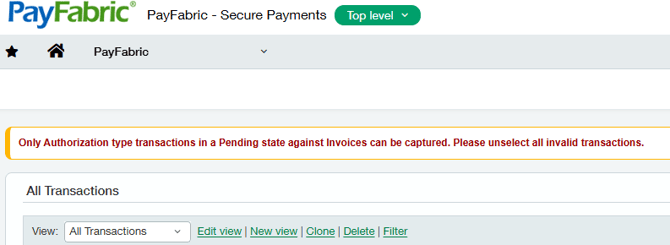
Reversing Transactions
A reversal (also known as a void/refund) will allow a user to return any funds to a customer. From the transaction list, a user can reverse any approved PayFabric transaction which will return the associated transaction amount to the customer.
Prior to processing the reversal, additional confirmation will be presented to the user.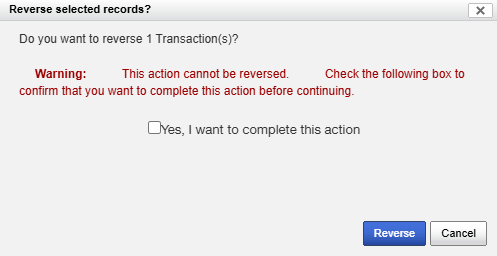
To view any previously reversed transactions, the user may change the view to 'All Reversed Transactions'.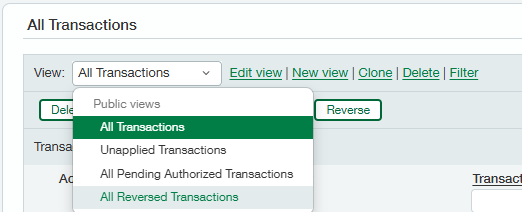
Processing Transactions
PayFabric Transaction Screen
The PayFabric transaction screen is where the merchant is able to process a transaction on the document that is selected.
Sage Intacct documents that support PayFabric processing include:
- Order Entry Sales Order
- Order Entry Sales Invoice
- Accounts Receivable Invoice
- Accounts Receivable Receive a Payment - New!
- Accounts Receivable Advances
- Accounts Receivable Adjustments (Credit Memos)
On a supported document, the PayFabric dropdown will be available in the upper right hand of the screen as seen in below image.

The PayFabric dropdown will have various types available depending on the associated document. For further details, see PayFabric Transactions Types.
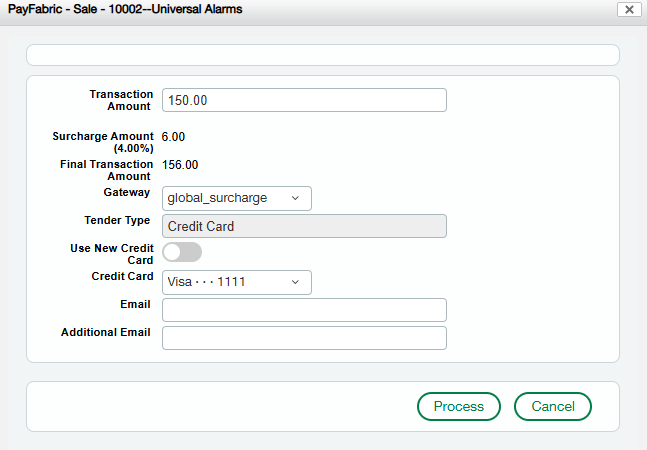 PayFabric transaction window displaying a sale using a saved credit card with a gateway that has surcharge enabled.
The following table describes which fields are required to process a transaction in the PayFabric Transaction screen.
| Field | Description |
| Transaction Amount | The amount to be processed for the transaction. Amount will be automatically populated based on the Sage document outstanding amount for Order/Invoices. For the other document types, it will populate based on the document details created by the user. |
| Surcharge Amount (x%) | The surcharge amount will be read-only and calculated based on the transaction amount and the surcharge rate from the gateway setup. Note: This field is only displayed when both conditions are true. - Surcharge gateway is selected - Saved Credit Card is selected |
| Final Transaction Amount | The final transaction amount is the combined amount of the transaction amount and the surcharge amount. Note: This field is only displayed when both conditions are true. - Surcharge gateway is selected - Saved Credit Card is selected |
| Gateway | This dropdown will be used to select a gateway that has been defined in PayFabric Gateway Setup. This could be either a Credit Card gateway or ACH gateway. |
| Tender Type | The tender type that is associated to the Gateway as defined in the PayFabric Gateway Setup. This field is read-only and will adjust based on the selected gateway. |
| Use New Credit Card/ACH | Toggle option to specify whether to use new Credit Card or ACH account.When toggle is enabled, clicking the process button will invoke the PayFabric Hosted Payment Page. Note: If customer has no saved wallets respective to the tender type, this option will be toggled automatically. |
| Credit Card/ACH | This drop down will display the list of saved Credit Cards or ACH accounts for the associated customer. |
| Email Receipt | If enabled on PayFabric, the email listed will receive the email receipt for the transaction. (Optional) |
| Additional Email | Additional emails that the email receipt can be sent to for the transaction. For multiple recipients, emails should be separated by a comma. (Optional) |
PayFabric Transaction Screen Buttons
Process:
After all mandatory transaction fields have been populated, the transaction attempt can be processed. If using a saved card, the transaction will be processed in real time through PayFabric. Otherwise, if using a new card, the PayFabric Hosted Payment Page will open.
Close:
This button will close the PayFabric Transaction window without processing any payment.
Processing through a new payment method on any document type will not save the wallet to PayFabric.
Transaction Types
Authorization
An authorization will allow the user to place a temporary hold on the customer's funds. This will ensure that when it is time to capture, the funds are available. Typically, this transaction type would be used when dealing with orders and shipping inventory.
Note: This transaction type is only applicable to credit card transactions.
When an authorization has been captured, albeit either partially or for the full amount, the authorization will be closed. If more funds need to be captured, then a new authorization will need to be processed or a Sale transaction.
Supported Sage Documents:
- Order Entry Sales Order
- Order Entry Sales Invoice
- Accounts Receivable Invoice
Capture
A capture would be used in conjunction with an authorization. This will allow the user to capture the previous hold placed from the authorization.
Supported Sage Documents:
- Order Entry Sales Order
- Order Entry Sales Invoice
- Accounts Receivable Invoice
Sale
A sale would be a direct capture of the customer funds. The funds will be taken from the customer at the time of processing.
Note: This transaction type can be done with both credit card and ACH transactions.
Supported Sage Documents:
- Order Entry Sales Order
- Order Entry Sales Invoice
- Accounts Receivable Invoice
- Accounts Receivable Receive a Payment - New!
- Accounts Receivable Advances
Refund
A refund will return the funds to the customer. In most cases, this is only applicable to credit card transactions, but some ACH gateways allow for a refund on ACH.
Supported Sage Documents:
- Accounts Receivable Adjustment (Credit Memo)
Email Receipts
When processing a transaction within Sage Intacct, users will have the ability to populate email addresses for an email receipt to be delivered.
This email receipt template must be enabled within the PayFabric portal to allow for sending. Please reference the PayFabric user guide for email template setup.
To properly send an email receipt within Intacct, ensure that the email fields are populated within the PayFabric Transaction Details window.

The Email line will only accept 1 email address. For additional recipients, the Additional Email line can be populated with the recipients' emails which must be separated by a comma.
Amount Panel
The PayFabric amount panel will allow the user to identify if any PayFabric transactions have been processed on a particular document and is displayed on the following document types:
- Order Entry Sales Order
- Order Entry Sales Invoice
- Accounts Receivable Invoice
The display of the panel will differ depending whether the user is editing or viewing the document.
Example image of editing a document that has an associated PayFabric transaction
When viewing the document, the amount panel will display detailed information regarding the transaction. 
Example image of viewing a document that has an associated PayFabric transaction
Supported Sage Screens
PayFabric will support the Intacct screens in both new (unposted) and edit(posted) for the below documents.
- Order Entry Sales Order
- Order Entry Sales Invoice
- Accounts Receivable Invoice
For the remaining document types, PayFabric supports the Intacct screen for new(unposted).
- Accounts Receivable Advances
- Accounts Receivable Receive payments - New!
- Accounts Receivable Adjustments (Credit Memo)
For reference to available transaction types for each specific document type, refer to the section Transaction Types.
Processing Payments
When processing a payment, PayFabric will seamlessly handle payment creation based on the configuration in the gateway setup. See below conditions:
- The document type is an Order Entry Sales Invoice or Accounts Receivable Invoice and the transaction type is a sale or capture.
- If the document is existing, the payment document will be created automatically after successful processing.
- If the document is new and after successful processing, the payment document will be created at the time of posting.
- The document type is an Order Entry Sales Order and the transaction type is a sale or capture.
- If the document is existing, the advance document will be created automatically after successful processing.
- If the document is new and after successful processing, the advance document will be created at the time of posting.
Order Entry Sales Order
To process PayFabric transactions on a new sales order:
- Create a new sales order
- Populate the customer
- Add line item(s)
- Click the PayFabric button in the top right
- Select a transaction type
- On the PayFabric Transaction details pop up, verify the amount looks correct
- Select the proper gateway if utilizing multiple gateways
- Select the payment method if there are existing wallets respective to the gateway. Otherwise, new wallet will be defaulted.
- Click process. If an existing wallet was used, the transaction result will be displayed. Otherwise, the PayFabric hosted payment page will open if using a new wallet.
- After processing, post the sales order
To process PayFabric transactions on an existing sales order:
- Navigate to Order Entry > Sales Order
- Locate an order that has an outstanding balance
- Click Edit
- Click the PayFabric button in the top right
- Select a transaction type
- On the PayFabric Transaction details pop up, verify the amount looks correct
- Select the proper gateway if utilizing multiple gateways
- Select the payment method if there are existing wallets respective to the gateway. Otherwise, new wallet will be defaulted.
- Click process. If an existing wallet was used, the transaction result will be displayed. Otherwise, the PayFabric hosted payment page will open if using a new wallet.
- After processing, the screen will return to the main sales order list.
When processing payments on a sales order, the advance document will be created at the time of processing. A payment document will be created when the sales order has been converted to a sales invoice and posted. The payment will apply the previously created advance to the sales invoice.
Order Entry Sales Invoice
To process PayFabric transactions on a new sales invoice:
- Create a new sales invoice
- Populate a customer
- Add line item(s)
- Click the PayFabric button in the top right
- Select a transaction type
- On the PayFabric Transaction details pop up, verify the amount looks correct
- Select the proper gateway if utilizing multiple gateways
- Select the payment method if there are existing wallets respective to the gateway. Otherwise, new wallet will be defaulted.
- Click process. If an existing wallet was used, the transaction result will be displayed. Otherwise, the PayFabric hosted payment page will open if using a new wallet.
- After processing, post the sales invoice.
To process PayFabric transactions on an existing sales invoice:
- Navigate to Order Entry > Sales Invoice
- Locate an invoice that has an outstanding balance
- Click Edit
- Click the PayFabric button in the top right
- Select a transaction type
- On the PayFabric Transaction details pop up, verify the amount looks correct
- Select the proper gateway if utilizing multiple gateways
- Select the payment method if there are existing wallets respective to the gateway. Otherwise, new wallet will be defaulted.
- Click process. If an existing wallet was used, the transaction result will be displayed. Otherwise, the PayFabric hosted payment page will open if using a new wallet.
- After processing, the invoice document will be updated accordingly.
Accounts Receivable Invoice
To process PayFabric transactions on a new AR invoice:
- Create a new AR Invoice
- Populate the customer
- Add a valid GL Account in the entries section
- Click the PayFabric button in the top right
- Select a transaction type
- On the PayFabric Transaction details pop up, verify the amount looks correct
- Select the proper gateway if utilizing multiple gateways
- Select the payment method if there are existing wallets respective to the gateway. Otherwise, new wallet will be defaulted.
- Click process. If an existing wallet was used, the transaction result will be displayed. Otherwise, the PayFabric hosted payment page will open if using a new wallet.
- After processing, post the AR Invoice.
To process PayFabric transactions on an existing AR Invoice:
- Navigate to Accounts Receivable > Invoices
- Locate an invoice that has an outstanding balance
- Click Edit
- Click the PayFabric button in the top right
- Select a transaction type
- On the PayFabric Transaction details pop up, verify the amount looks correct
- Select the proper gateway if utilizing multiple gateways
- Select the payment method if there are existing wallets respective to the gateway. Otherwise, new wallet will be defaulted.
- Click process. If an existing wallet was used, the transaction result will be displayed. Otherwise, the PayFabric hosted payment page will open if using a new wallet.
- After processing, the screen will return the main invoices list.
Accounts Receivable Receive Payments
To process a sale on a new payment:
- Navigate to Accounts Receivable > Receive payments - New!
- Click the Add button
- Populate a customer
- Adjust the fields(payment method, account, etc) as necessary
- Populate an amount
- Click show invoices
- Select the invoices as needed
- Click the PayFabric button > Sale
- On the PayFabric Transaction details pop up, verify the amount is correct
- Select the gateway if using multiple gateways.
- Select the payment method if there are existing wallets respective to the gateway. Otherwise, new wallet will be defaulted.
- Click process. If an existing wallet was used, the transaction result will be displayed. Otherwise, the PayFabric hosted payment page will open if using a new wallet.
- After processing, post the payment.
Accounts Receivable Advances
Additional set up may be required, please reference the Sage Intacct Installation guide for further details.
https://help.north49.com/payfabric-for-sage-intacct-installation-guide
To process a sale on a new advance:
- Navigate to Accounts Receivable > Advances
- Click the Add button
- Populate a customer
- Adjust the fields (payment method, account, etc) as necessary
- Add the GL account in the entries section
- Populate the amount
- Populate the location if not already populated
- Click the PayFabric button > Sale
- On the PayFabric Transaction details pop up, verify the amount is correct
- Select the gateway if using multiple gateways
- Select the payment method if there are existing wallets respective to the gateway. Otherwise, new wallet will be defaulted.
- Click process. If an existing wallet was used, the transaction result will be displayed. Otherwise, the PayFabric hosted payment page will open if using a new wallet.
- After processing, post the advance
Accounts Receivable Adjustment (Credit Memo)
To process a refund on a new adjustment:
- Navigate to Accounts Receivable > Adjustments
- Click the Add button
- Populate a customer
- Change type to Credit memo if not already selected
- Add the GL account in the entries section
- Populate the amount
- Populate the location if not already populated
- Click the PayFabric button > Refund
- On the PayFabric Transaction details pop up, verify the amount is correct
- Select the gateway if using multiple gateways
- Select the payment method if there are existing wallets respective to the gateway. Otherwise, new wallet will be defaulted.
- Click process. If an existing wallet was used, the transaction result will be displayed. Otherwise, the PayFabric hosted payment page will open if using a new wallet.
- After processing, post the adjustment.
PayFabric Permissions
PayFabric permissions can be set for each specific Intacct role on an as needed basis. Please consult your system administrator for any permission related issues.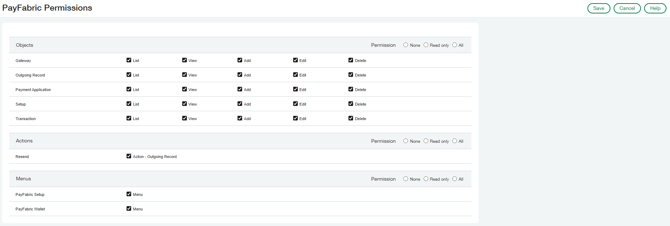 Example image depicting the available PayFabric permissions which can be configured.
For example, in a scenario where the user is mainly processing payments, they may not need access to the PayFabric Setup screen.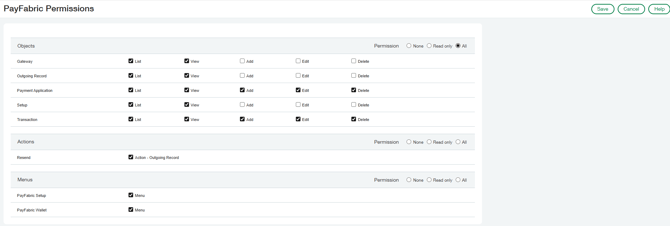
Example image depicting how to set up permissions to achieve above scenario.
User Access Control
As Sage Intacct allows users to process using PayFabric from various forms in new or edit mode. To prevent users from processing PayFabric transactions on these forms, the system administrator can remove the add/edit permission to these forms.
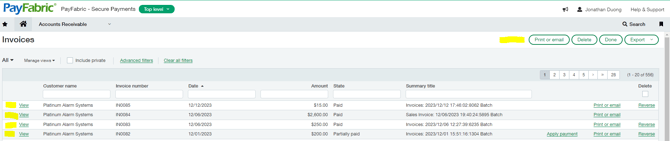 Example image showing missing actions due to reduced permissions. Highlighted portions represent the missing actions.
PayFabric Receivables
Introduction to PayFabric Receivables
PayFabric Receivables is an add-on service to PayFabric that provides businesses the tools to
automate the many processes around collecting payment for accounts receivable invoices. By
leveraging the payment processing power of the PayFabric cloud, PayFabric Receivables offers
real-time payment processing for both credit card and ACH transactions while ensuring the
highest standards of security are addressed.
This document covers configuration and utilization of PayFabric Receivables features.
https://www.nodus.com/wp-content/uploads/2024/08/PayFabric-Receivables-User-Guide.pdf
Sage Intacct Web Service User
In order to establish a connection between Sage Intacct and PayFabric Receivables, a web service user must be created within Sage Intacct with the appropriate permissions. The Sage Intacct system administrator should create the web service user with the below guidelines.
- Business user with admin privileges set to off
- The following roles should be assigned with read/write access:
- Accounts Receivables
- Inventory Control
- Order Entry
- Purchasing
- The following roles should be assigned with list/view access:
- Company (Locations & Entities)
- General Ledger (Accounts)
- Cash Management (Accounts)
PayFabric Receivables Sage Connector
Once a web service user has been created within Sage Intacct, PayFabric Receivables can be configured to connect to Sage Intacct. In PayFabric Receivables connection settings, the PayFabric administrator can configure using either the legacy method or webhooks. 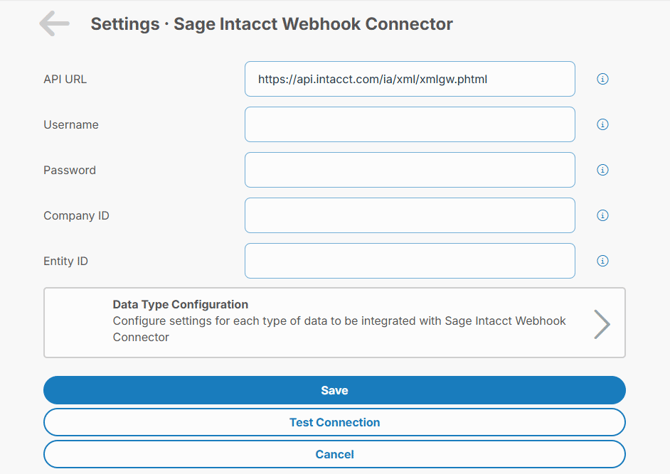 Example image showing an unconfigured Sage Intacct Connector utilizing Webhooks
To complete configuration, populate the web service user credentials for the username and password. The company ID will be the same company used in the Sage Intacct login. Entity ID may be left blank, in which case, the connection will be utilizing top level. Once configured, click the test connection button to verify a successful connection was made.
Data Type Configuration
The options in this section will vary based upon the selected method for the Sage connector. 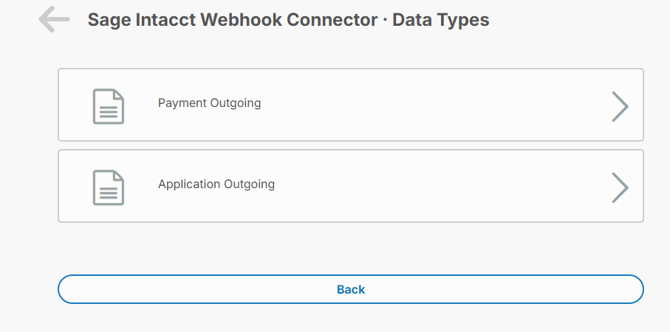 Example image showing the available data types for the Webhook method
The data types will control how frequently the specific data type will run and also provide information on when the last run occurred. Using the above screenshot for reference, the Webhook connector data types will control how often Payment & Applications will be sent from PayFabric Receivables to Sage Intacct.
Supported Records for Integration
This section will outline what record types are supported for integration between Sage Intacct and PayFabric Receivables.
Only documents that have been posted will be integrated from Sage Intacct to PayFabric Receivables.
Sage Intacct to PayFabric Receivables
- Customers
- Accounts Receivable Invoice
- Order Entry Sales Invoice
- Adjustments Debit Memo
- Accounts Receivable Payments
- Adjustments Credit Memo
- Advances
PayFabric Receivables to Sage Intacct
- Payments (applied and unapplied)
- Credit Applications
- Surcharges (If enabled and applicable)
Surcharge documents will be integrated into Sage Intacct as Adjustment Debit Memos.
PayFabric Outgoing Records
PayFabric outgoing records page will display the list of records that will/have been integrated into PayFabric Receivables.
This page is only applicable if utilizing the webhook method of integration.
Queueing Records to be sent to PayFabric Receivables
When beginning to utilize the integration to PayFabric Receivables, there may be existing data that may need to be integrated. In order to do so, there is a queue functionality available on the PayFabric Outgoing Records page. The queue will support all record types aforementioned in the previous section and includes a date filter to only queue records that have been created on or after the date specified.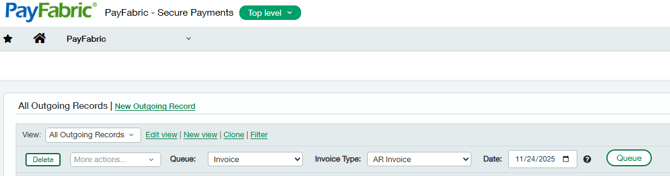
Example image displaying how to queue only AR Invoices created on 11/24/25 and above.
PayFabric Receivables Workflow
Within PayFabric Receivables, there are various actions available to users such as paying invoices and viewing historical payments. If the user has elevated permissions, there may be additional pages such as integration pages or settings. For the purposes of this section, it will only cover common behavior such as viewing the integration pages or processing a payment on an invoice.
Integration Pages
The integration tab is split into two separate pages which will display incoming data into PayFabric Receivables and outgoing data from PayFabric Receivables. On the incoming data page, users can view what type of record is inbound and whether it has been successfully integrated as indicated by the status column. For the outgoing data, this will mainly consist of payments or applications which will be outgoing to Sage Intacct. The status will update to 'Success' or 'Failed' depending on whether the record was successfully integrated into Sage Intacct.
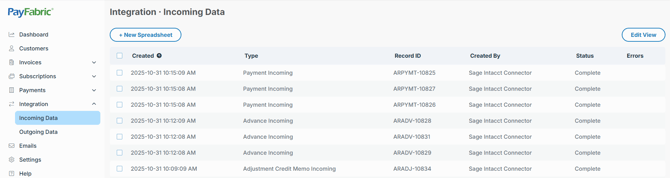 Example image of records integrating into PayFabric Receivables.
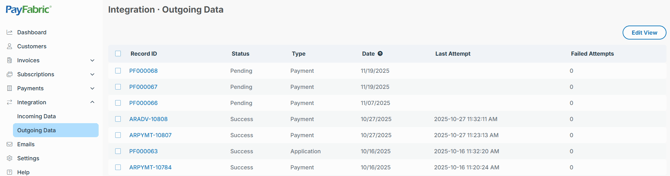 Example image of records exporting out of PayFabric Receivables.
Paying invoices
Invoices in PayFabric Receivables are able to be paid from the customer directly (given a login) or on the customer's behalf through a customer service representative. When paying invoices on PayFabric Receivables, the below scenario will feature an Accounts Receivable invoice being paid and the payment being integrated into Sage Intacct.
- Customer or representative logs into PayFabric Receivables and selects an outstanding invoice to pay.

- Customer provides payment information or uses existing wallets and completes payment
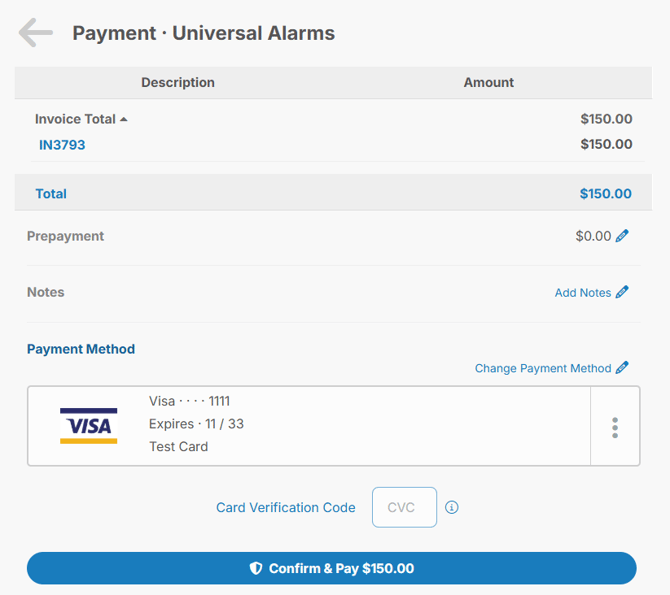
- A payment is generated and receipt is displayed to the user.
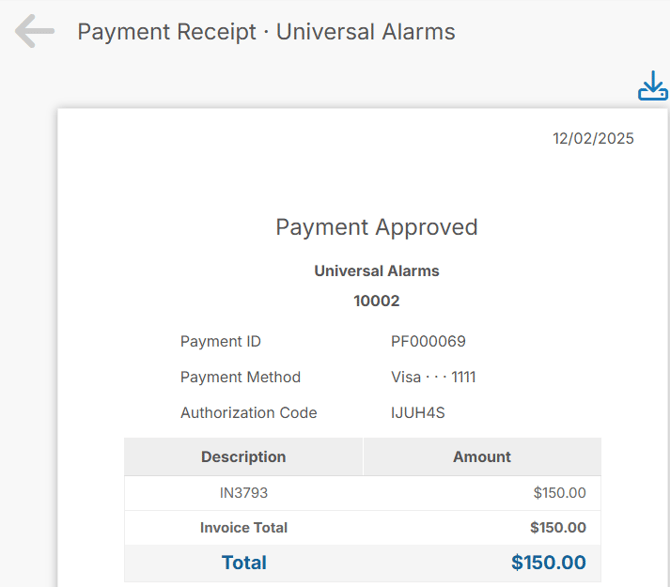
- In Integration > Outgoing Data, a payment record will be generated. Initially it will display the Payment ID as shown in the above receipt. After it has been integrated into Sage Intacct, it will obtain an Intacct payment ID.

- Once integrated into Sage Intacct, the payment created in PayFabric Receivables can be found on the Posted Payments page and viewing the details will show it is applied to the invoice. Additionally, the PayFabric transaction details can be found on the PayFabric Transaction page.
 Example of payment found in Posted Payments page
 Example of PayFabric transaction details from PayFabric Transactions page
Copyright Information
Copyright © 2024 North49 Business Solutions. All rights reserved. Your right to copy this documentation is limited by copyright law and the terms of the software license agreement. As the software licensee, you may make a reasonable number of copies or printouts for your own use. Making unauthorized copies, adaptations, compilations, or derivative works for commercial distribution is prohibited and constitutes a punishable violation of the law.
Trademarks: PayFabric ® for Sage Intacct, North49 are either registered, trademarks or trademarks of North49 Business Solutions in Canada. PayFabric ® is a registered trademarks of Nodus Technologies, Inc in the United States.
The names of actual companies and products mentioned herein may be trademarks or registered marks - in the United States and/or other countries - of their respective owners.
The names of companies, products, people, and/or data used in window illustrations and sample output are fictitious and are in no way intended to represent any real individual, company, product, or event, unless otherwise noted.
Warranty: Disclaimer North49 Business Solutions disclaim any warranty regarding the sample code contained in this documentation, including the warranties of merchantability and fitness for a particular purpose.
Limitation of Liability: The content of this manual is furnished for informational use only, is subject to change without notice, and should not be construed as a commitment by North49 Business Solutions. North49 Business Solutions assumes no responsibility or liability for any errors or inaccuracies that may appear in this manual. North49 Business Solutions nor anyone else who has been involved in the creation, production or delivery of this documentation shall be liable for any indirect, incidental, special, exemplary or consequential damages, including but not limited to any loss of anticipated profit or benefits, resulting from the use of this documentation or sample code.
License agreement Use of this product is covered by a license agreement provided with the software product. If you have any questions, please call North49 Business Solutions Support at 909-482-4701