![noth49_logo.png]](https://help.north49.com/hs-fs/hubfs/noth49_logo.png?height=40&name=noth49_logo.png)
Contents:
Add PayFabric functionality to receive Advances Page
Introduction
The purpose of this guide is to provide an overview of how to install the PayFabric solution for Sage Intacct. For functionality and more in depth explanations on usage of the solution, please refer to the user guide found here:
https://help.north49.com/payfabric-for-sageintacct
Prerequisites
- Platform Services
- User must be a user with system administrator permissions
- Ability to install from XML (user must be a user with system administrator permissions.)
Add ajax Sender ID to web services authorizations
The Sender ID ajax must be added to web services authorizations for the PayFabric application to function properly.
- Go to Company > Setup > Company > Security Tab
- Edit page
- Scroll down to the web services authorizations section
- Click on Add
- And the Sender ID = ajax
- Save the Change.
Add North49mpp2 Sender ID to web services authorizations (Required for PayFabric Receivables)
The Sender ID North49mpp2 must be added to web services authorizations for the PayFabric Receivables application to function properly.
- Go to Company > Setup > Company > Security Tab
- Edit page
- Scroll down to the web services authorizations section
- Click on Add
- And the Sender ID = North49mpp2
- Save the Change.
Add web user PFRUser to web services Users (Required for PayFabric Receivables)
- Go to Company > Admin > Web Services Users
- Create new web user with User ID and User Name PFRUser
- Ensure email is one that can receive email as the password to the web user will be in that email body
- Following roles/permissions are required for this web user:
- Accounts Receivables
- Inventory Control
- Company
- Order Entry
- PayFabric
- Purchasing
Install XML package
- Login to Intacct as user satisfying the precondition
- Navigate to Platform Services > Platform tools > Applications
- Under ‘Custom Applications’, click the ‘Install from XML’ option
- Click ‘Choose File’
- Use the file explorer to locate the solution file
After the solution has been loaded, click the install button. - Should display a ‘Loading…’ icon on the top of page
- Wait for the install to complete
- Verify that there were no errors during the install process.
- Refresh Page to verify PayFabric has been added into the applications menu.
Add PayFabric functionality to receive Advances Page
PayFabric button should be present after installation. However, certain sections of the script will need to be modified.
Precondition: Login user must be a user with system administrator permissions.
- Login to Intacct as user satisfying the precondition
- Navigate to Accounts Receivable > Advances
- Click the ‘Add’ button on this page
- Subsequently, click More Actions > Edit this page
- Click the Edit button for the script component
- Open a new tab of Sage Intacct
- Browse to Accounts Receivables > Invoices
- Click on Add
- Locate the PayFabric section at the bottom of the page
- Right Click and Inspect
- Expand each section to mimic the below image
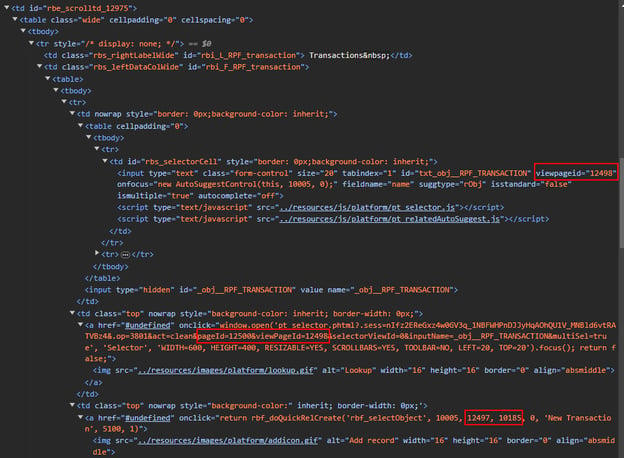
- Back on the script component for the advances page, replace the values in each respective section with the values highlighted with the red box in the previous screenshot.
- Click the Save button on the popup.
- On the page editor form, click the Save button.
- Verify the changes are successful by fully processing a payment on an advance.
Roles
User needs to be assigned the following Roles to have access to PayFabric Processing inside of Sage Intacct.
::SYS::Enterprise-ROLE-FOR - Module: PayFabric
Permissions
User needs to be assigned the following permissions to have access to PayFabric inside of Sage Intacct.
- For ability to process transaction inside of Sage Intacct, all objects and Menus under PayFabric permissions need to have all permission boxes selected , List, View, Ass, Edit, Delete, Menu.
- If a User only requires Read only access, assign the View permission to all objects, and assign the menu permissions.